SSIS

Data Profiling

What is a SSIS Data Profiling Task?

SSIS has a component which performs data profiling, and output the profile of the data as a report.

The Data Profile Task analyses and provides an insight of the data which is very useful in understating as well as identifying the quality issues of the source data. Data profiling task can also be useful in defining the targets for the datasets.

Component

How to configure a SSIS Data Profiling Task?

  • First double click on the Data Profiling Task.

Window1

  • First and foremost the destination is required to be configured, which will be used to store the profile data in an XML format. The destination type can be either a file connection or a variable.

Window6

  • For this example we’ll use File Connection as the destination type.
  • You will be required to select a new connection and set the connection for the first time.

Window7

  • The profiler can be set to create a new file as well as to use an existing file.

Window8

  • Select the desired file type and file and click on OK.
  • Next to configure the profiling checks click on the Quick Profiler and the following window will appear.

Window2.png

  • Select the Target data connection from the drop down menu of ADO.NET Connection. (If no connection is available, click on New and create a new connection.)

Limitation: Profiling Task can only profile SQL Server database data.

(If having the data in a different platform, first load the data into the SQL Server database in order to profile the data)

  • After creating the connection select the required database and the table.

Window4.png

  • Select the required data checks.

Data profiler provides a number of different data checks as follows:

  1. Column Null Ratio Profile: Percentage of Null records of all the columns of the selected table.
  2. Column Statistic Profile: Minimum, Maximum and standard deviations of the column values.
  3. Column Value Distribution Profile: Pattern of repeating data as well as the percentage of total repeats.
  4. Column Length Distribution Profile: Length of the strings, as well as the occurrence of the length across the columns.
  5. Column pattern profile: Reveals a set of regular expressions in a string column. Identifies invalid strings as well as provides suggestions of regular expressions, which can be used to validate new values for the dataset.
  6. Candidate Key Profile: Identifies the candidates, which can be used for the primary key constraint.

When using the Candidate Key Profile, an additional option is available to be selected as the no. of columns to be considered at a time.

E.g.: 2 – a combination of 2 columns for candidates for the PK constraints.

  1. Functional Dependency Profile: Compares columns to profile the dependencies of the data.

The no. of columns to be considered at a time also can be set using the ‘for up to’ option same as above.

  • After selecting the required data checks click on OK.

Window5.png

  • Click on OK again.
  • As now the Data Profiler is all configured execute the task.

Window9.png

  • Once the task in executed successfully, double click on the profile task and click on Open Profile Viewer to open the profile report.

Window10.png

  • If multiple profile tasks have been executed, once clicked on Open Profile Viewer the most recently generated data profile will be launched.

Window11.png

The different profiles generated can be viewed as follows.

  1. Candidate Key Profiles.

CKP.png

  1. Column Length Distribution Profiles.

CLDP.png

  1. Column Null Ratio Profiles.

CNRP.png

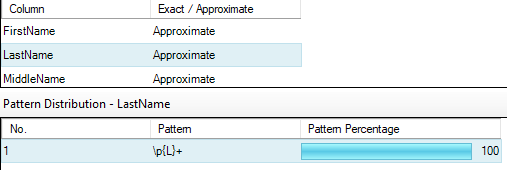
  1. Column Pattern Profiles.

CPP.png

  1. Column Statistics Profiles.

CSP.png

  1. Column Value Distribution Profiles.

CVDP.png

  1. Functional Dependency Profiles.

FDP.png

As the profile report will be saved in an XML format, it can be used to consume to any application as well.

SSIS

SSIS logging methods

Information on currently executing as well as details on executed packages can be obtained by SSIS Loggings. These logging details are useful for a variety of reasons. SSIS packages bug fixing, performance monitoring as well for fine tuning can be given as some common scenarios. Some commonly used methods for these purposes are:

  • Using SSIS build-in Reports.
  • In-build logging feature of SSIS and querying the logs tables.
  • Using Event handlers.
  • Custom build queries using SSISDB tables and catalog views.
  • Implementing SQL Tasks to log into customized log tables, when necessary (at the beginning and at the end of packages).

Method No.

  1. SSIS build-in Reports.

One of the widely used logging feature of SSIS. Reports of validations as well as executions are available for monitoring purposes.

SSIS In-build Reports
1. SSIS build-in Reports

2.  In-build logging feature of SSIS and querying the logs tables.

The following are the steps to be followed for enabling logging feature of SSIS in order to query the logs tables, to achieve package level logging information.

  • On the menu, select SSIS (or right click while in the control flow) –> Logging.
  • On the Configure SSIS Logs: Select the required provider type and click on Add. Check the name checkbox and provide the connection for the data source under configuration column. Once this is done SSIS will create a table as dbo.sysssislog and a system stored procedure as dbo.sp_ssis_addlogentry in the database that you have provided.
  • Select the Details tab and you may select the events on which you required execution details to be logged.
dbo.sysssislog
SSIS build-in Reports

3. Using Event handlers.

This is another option to track package progress. Although this option provides the flexibility of performing different tasks on a particular event apart from logging the information, the downside of this option is that it requires the settings to be done everywhere in all the packages as required. But definitely for a lesser no of packages it’s a minor concern. It’s totally up to the developer to decide based on the requirement and the scenario.

EventHandlers
SSIS Package Event Handlers

4. Custom build queries using SSISDB tables and catalog views

The SSISDB Catalog is the central when working with SSIS Packages, which stores a list of SSIS related objects as well as tables with operational history of all of the deployed SSIS projects. This also comes in handy when querying the execution process of SSIS packages.

For an example:

catalog.executable_statistics in combination with catalog.executables can be used to identify the longest running objects in a package.

—– top five longest running objects in the package.

USE SSISDB

SELECT TOP 5 ex.[executable_name], es.[execution_duration]

FROM [catalog].[executable_statistics] AS es

LEFT JOIN [catalog].[executables] AS ex

ON es.[execution_id] = e.[execution_id]

WHERE ex.[execution_id] = 2

ORDER BY [execution_duration] DESC

——- A View on package execution event information

CREATE VIEW [dbo].[VWPackageExecutionStaus]
AS
SELECT
om.operation_message_id
, om.operation_id
, op.[object_name] Project
, ev.package_name Package
, om.message_time [Date]
,CASE om.message_type
WHEN 120 THEN ‘package failed’
WHEN 130 THEN ‘Task Failed’ ELSE ‘Package Succeed’
END AS [Package Status]
,CONVERT(DATETIME,op.[start_time]) AS [Start Time]
,CONVERT(DATETIME, op.[end_time]) AS [End_Time]
,DATEDIFF(s, op.start_time, op.end_time) AS [Package Duration]

FROM
[SSISDB].[internal].[operation_messages] AS om
INNER JOIN [SSISDB].[catalog].[event_messages] AS ev ON ev.operation_id = om.operation_id
INNER JOIN [SSISDB].[internal].[operations] AS op ON op.operation_id = ev.operation_id

GO

5.  Apart from SSIS in-build logging tables customized tables for logging purposes also can be build and used within the SSIS packages.

——-Table PackageLogDetails

CREATE TABLE PackageLogDetails

(

[PackageLogDetailsID] [int] IDENTITY(1,1) NOT NULL,

[PackageName] [nvarchar](100) NOT NULL,

[StartTime] [datetime] NOT NULL,

[EndTime] [datetime] NULL,

[Success] [bit] NULL CONSTRAINT [DF_PackageLogDetails_Success]  DEFAULT (0)

)

GO

——- Procedure sp_SPackageLog

CREATE PROCEDURE sp_SPackageLog @PackageName nvarchar (100)

AS

BEGIN

INSERT INTO PackageLogDetails (PackageName, StartTime )

VALUES (@PackageName, GetDate() )

END

SELECT MAX(PackageLogDetailsID) FROM PackageLogDetails WHERE [PackageName] = @PackageName

——- Proc sp_EPackageLog

CREATE PROCEDURE sp_EPackageLog @PackageLogDetailsID INT

AS

BEGIN

UPDATE dbo.PackageLogDetails SET EndTime = GetDate() , Success = 1

WHERE PackageLogDetailsID = @PackageLogDetailsID

END

Customized_ETL
Logging Package execution with Customized log tables