

What is a SSIS Data Profiling Task?
SSIS has a component which performs data profiling, and output the profile of the data as a report.
The Data Profile Task analyses and provides an insight of the data which is very useful in understating as well as identifying the quality issues of the source data. Data profiling task can also be useful in defining the targets for the datasets.

How to configure a SSIS Data Profiling Task?
- First double click on the Data Profiling Task.

- First and foremost the destination is required to be configured, which will be used to store the profile data in an XML format. The destination type can be either a file connection or a variable.

- For this example we’ll use File Connection as the destination type.
- You will be required to select a new connection and set the connection for the first time.

- The profiler can be set to create a new file as well as to use an existing file.

- Select the desired file type and file and click on OK.
- Next to configure the profiling checks click on the Quick Profiler and the following window will appear.

- Select the Target data connection from the drop down menu of ADO.NET Connection. (If no connection is available, click on New and create a new connection.)
Limitation: Profiling Task can only profile SQL Server database data.
(If having the data in a different platform, first load the data into the SQL Server database in order to profile the data)
- After creating the connection select the required database and the table.

- Select the required data checks.
Data profiler provides a number of different data checks as follows:
- Column Null Ratio Profile: Percentage of Null records of all the columns of the selected table.
- Column Statistic Profile: Minimum, Maximum and standard deviations of the column values.
- Column Value Distribution Profile: Pattern of repeating data as well as the percentage of total repeats.
- Column Length Distribution Profile: Length of the strings, as well as the occurrence of the length across the columns.
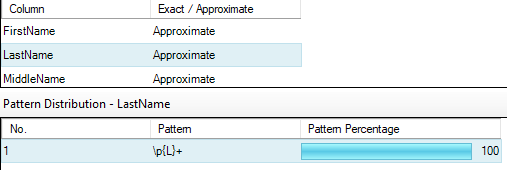
- Column pattern profile: Reveals a set of regular expressions in a string column. Identifies invalid strings as well as provides suggestions of regular expressions, which can be used to validate new values for the dataset.
- Candidate Key Profile: Identifies the candidates, which can be used for the primary key constraint.
When using the Candidate Key Profile, an additional option is available to be selected as the no. of columns to be considered at a time.
E.g.: 2 – a combination of 2 columns for candidates for the PK constraints.
- Functional Dependency Profile: Compares columns to profile the dependencies of the data.
The no. of columns to be considered at a time also can be set using the ‘for up to’ option same as above.
- After selecting the required data checks click on OK.

- Click on OK again.
- As now the Data Profiler is all configured execute the task.

- Once the task in executed successfully, double click on the profile task and click on Open Profile Viewer to open the profile report.

- If multiple profile tasks have been executed, once clicked on Open Profile Viewer the most recently generated data profile will be launched.

The different profiles generated can be viewed as follows.
- Candidate Key Profiles.

- Column Length Distribution Profiles.

- Column Null Ratio Profiles.

- Column Pattern Profiles.
- Column Statistics Profiles.

- Column Value Distribution Profiles.

- Functional Dependency Profiles.

As the profile report will be saved in an XML format, it can be used to consume to any application as well.

 Shamali's BI